How to add a new device
Once you’ve created a survey, you need to set-up a device to run your survey on. The instructions below will show you how.
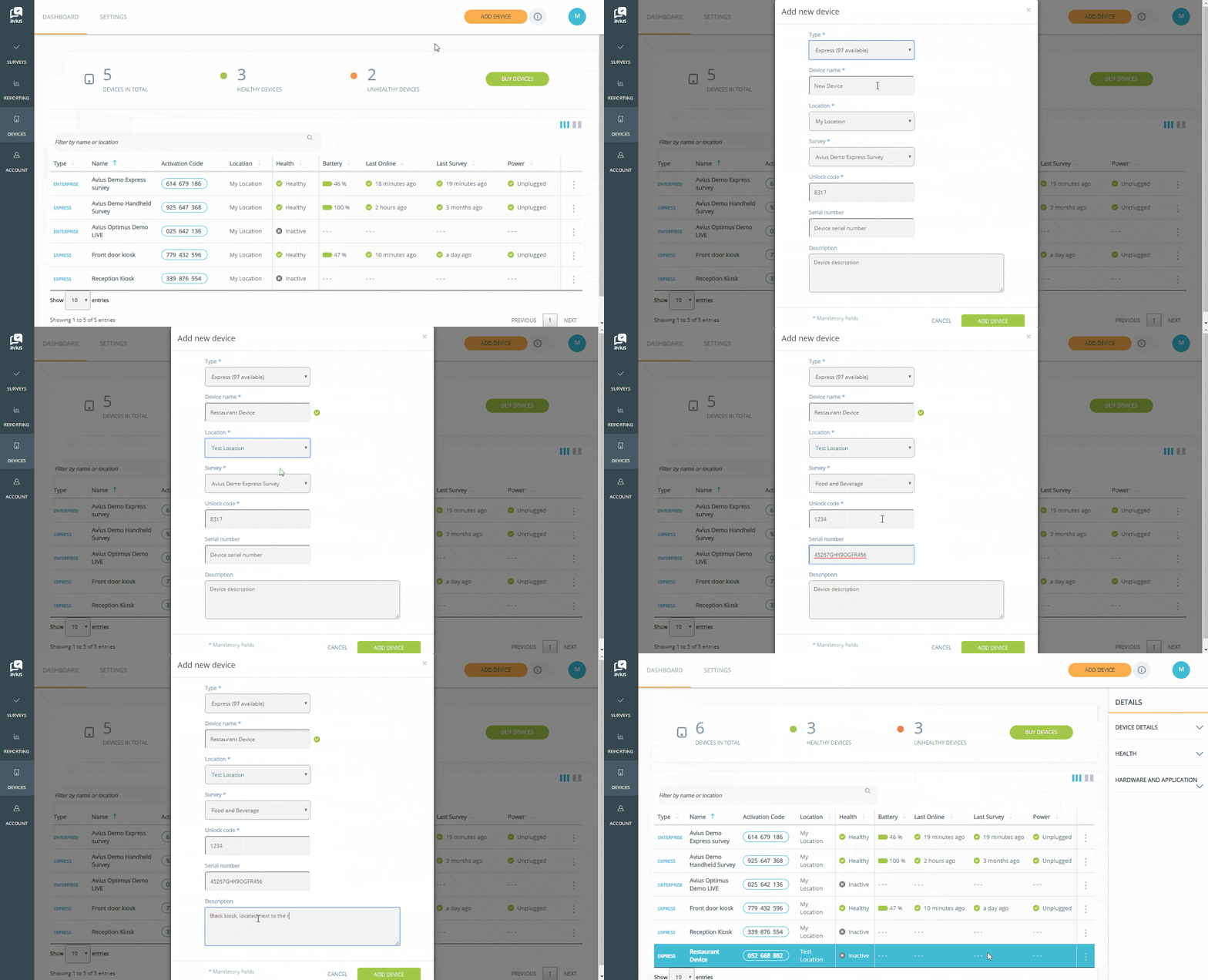
Login to Avius Surveys and click on Device in the left-hand menu to see your list of devices.
- Click on the yellow ‘Add Device’ button in the top right.
- Click on the drop down arrow and choose a type of survey licence.
- Give your device a name, the will appear in reporting.
- Choose a physical location for the device, e.g. 4th floor, north building. If you haven’t already, you can set new ones up in Locations.
- Click on the drop down arrow and choose a survey.
- Choose an unlock code, you’ll need this to access the device settings.
- This is a handy place to keep a note of the device’s serial number.
- Add a device description to help you identify which device is which.
- Click the green ‘Add Device’ button.